Overview
The demo funds are at your disposal to help you learn the application and expose you to key features such as Automated Data Feeds, Generate Income, Corporate Actions Console, etc. We have set you up with a SMSF (DEMO_SMSF) and Unit Trust (DEMO_CIR) to help you get started. You can access these funds from the Browse Funds screen.
This guide applies to demo funds loaded to Class after 22 June 2015. There are no guides for demo funds loaded prior to this date.
Below are steps to help you process the funds from start to finish. It is recommended you attend Class Fundamentals before you attempt to process these funds.

How to Process Transactions on Demo Superannuation Fund
- On the browse funds screen, click on Demo Superannuation Fund (DEMO_SMSF). This will take you to the Fund Dashboard. Please have a look around the fund to familiarise yourself with it.
- First we will set up the data feeds and use the data feeds to bring in cash and broker transactions. The fund is set up with the following accounts where an automated feed is available.
- AUD Cash Account # 19092017
- Account Number - 19092017 (AU Broking Account)
- Account Number - 19092018 (Foreign Wrap Account)
-
To set up the cash data feed, go to Feeds > Feeds console and click on 'AUD Cash Account # 19092017'. Click on the Load Feed Data button to bring in cash transactions from 01/07/2013 to today's date.
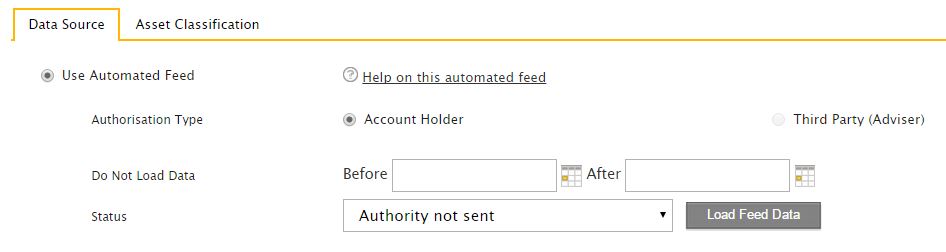
It may take up to a minute or two for the application to load the historical transactions on the bank account.
-
To set up the broker data feed, click on 'Account Number - 19092017'. Change Product to 'Demo Broking Account'. You can also change the Display Name to 'AU Broking Account' as shown below.
Save the changes, the load feed data button should now appear which will allow you to set up the broker feed. Repeat process for foreign wrap account.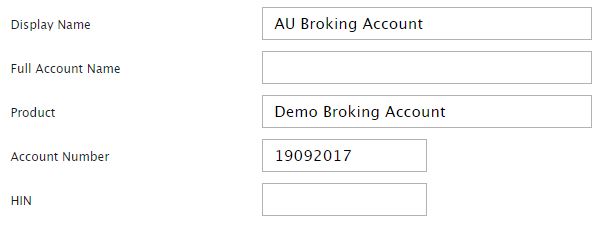
You will need to be a little patient between activating data feeds for different accounts as the Feeds Console takes a little time to refresh while transactions are being fed into the the system.
What to expect?
- The cash data feed will bring in bank statement line items for your AUD Cash Account starting form 01/07/2013 to most recent date to which transactions are available. The data feed will also generate auto transaction rules to automatically process events for Interest Income.
- The broker data feed and wrap data feed will bring in trade history starting from 01/07/2013 to most recent date to which transactions are available as well. The data feed will also give you the most recent Balance Confirmation on the unit holding of your investments connected to the data feed. The application will compare the feed balance to the ledger balance to provide an up-to date reconciliation of your investments. The broker feed will also automatically generate income events for your listed investments. Class does not guess, it will only calculate and generate income events where the broker feed can provide us with a confirmed unit holding on the ex-date. Events generated by the broker feed will usually be automatched to available cash transactions. Unmatched events are common and is usually caused by differing dates or amounts and need to be matched off manually from the Match transactions screen.
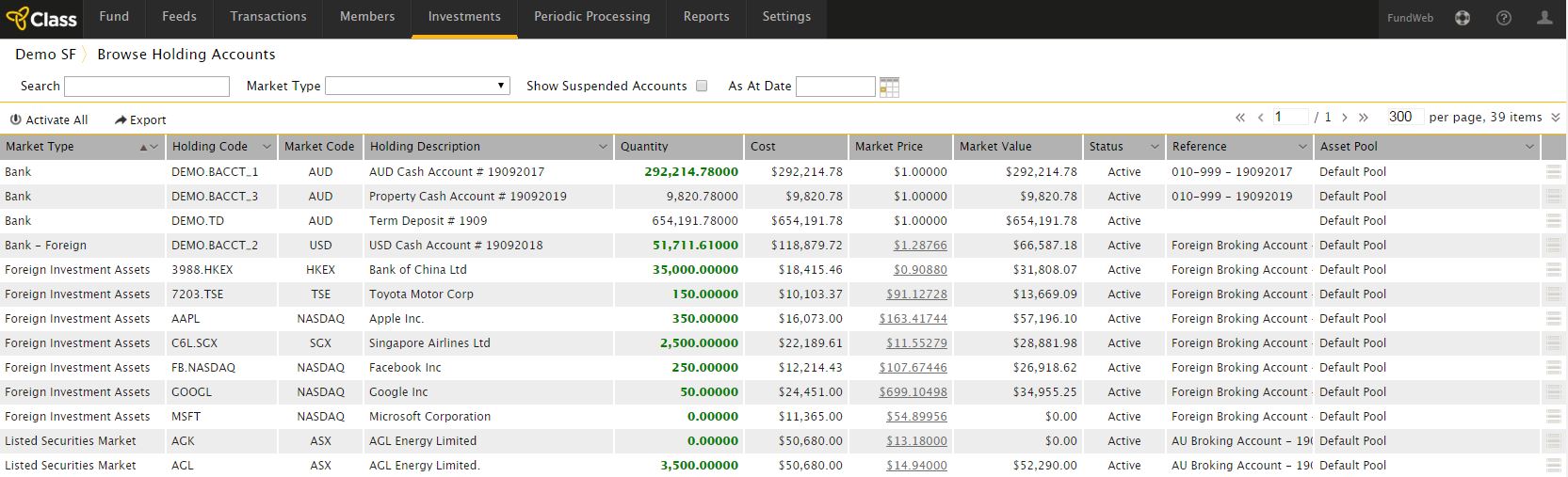

Now that we have transactions we can go to Transactions > Match transactions to start processing the fund.
We will start by creating some Transaction rules. Sort Cash Transactions by Description to group transactions with similar/same narratives together. Click the
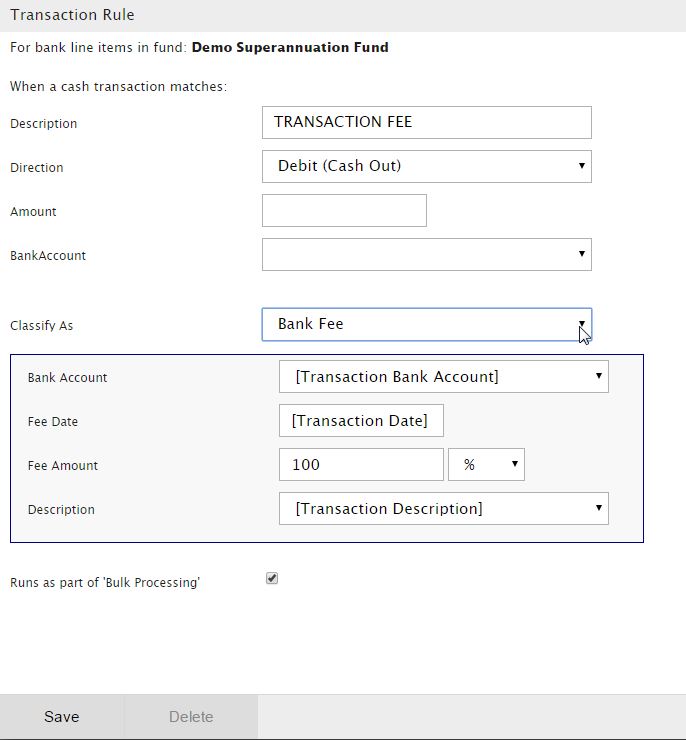
 menu icon for the transaction for which you would like to create a transaction rule. The reason we do this is to ensure that the transaction rules can automatically process transactions on the bank account being fed into the system via a data feed on a daily basis. Let's start by creating a transaction rule on the description 'Transaction Fee' as shown below.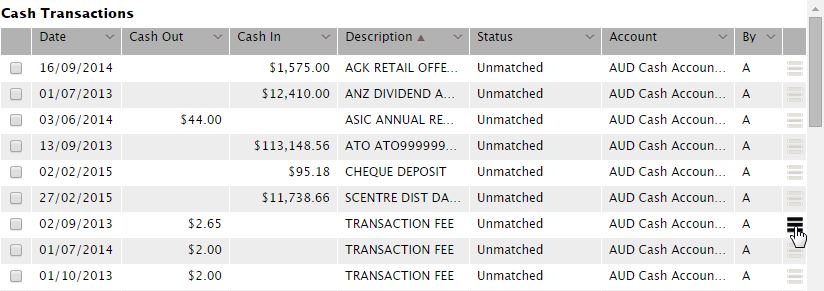
- On the transaction rule creation screen select Bank Fee as the classification for the transaction. You do not need to specify any further detail on the transaction rule. Please refer to the View Transaction Rules page on the user guide for further information on transaction rules.
-
Go through the list of the cash transactions to identify where else a transaction rule is applicable. Here is a hint.

Please refer to the following pages on the User Guide to learn more about transactions rules:
-
After you run the transaction rule on your pension payments you will receive the following error message.

Process the remaining pension payment manually by creating a new 'Pension Drawdown - Post 07' event. Allocate $72.72 to Victoria and $99,927.28 to David.

- We will now go through the list of unmatched business events and deal with them appropriately.
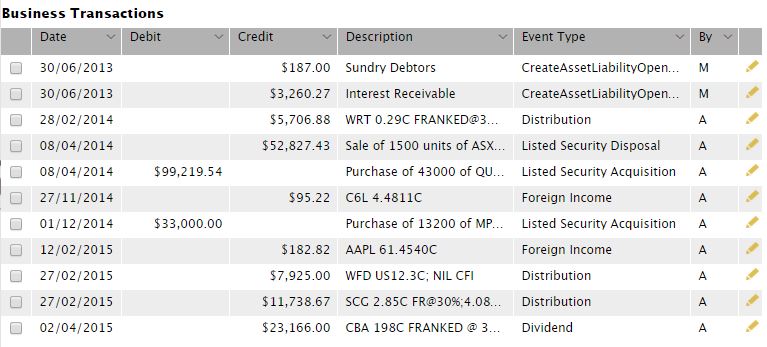
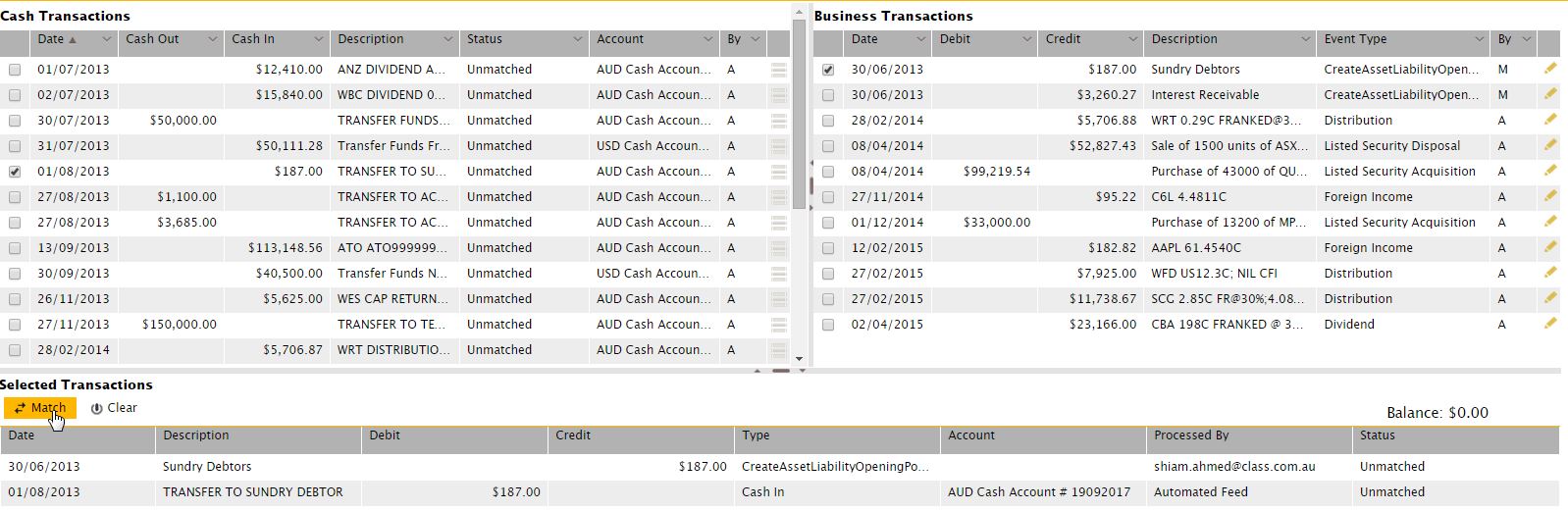
- Find the cash transaction that may relate to the unmatched business event of $187 on the sundry debtor account. This transaction may relate to a receivable from the previous financial year. Tick both the business event and related cash transaction and click Match. Similarly find the related cash transaction for the $33,000 listed security acquisition event on 01/12/2014 and match it.
- The distribution income of $5,706.88 from Westfield Retail Trust (WRT) remains unmatched as the cash we received in our bank account is different by $0.01. Tick both business event and cash transaction and allow the system to correct the business event to the actual amount you received in your bank account by clicking on the Fit To Cash button. Repeat the fit to cash process on any other income event that may be slightly different to the amount received in cash. Please read Matching Foreign Transactions page to get familiar with matching transactions on foreign investments.
- The Fit to Cash button will only appear when matching a business event and cash transaction that are different but within a certain threshold (Note: there is no threshold on foreign transactions). You will find an unmatched business event for the amount of $7,925, which is distribution income for Westfield Corporation (WFD), is different from the cash amount by $1.12. To fix this click the
 icon to edit the transaction.
Click Edit to change the Gross Payment amount to $7,926.12. Click Submit.
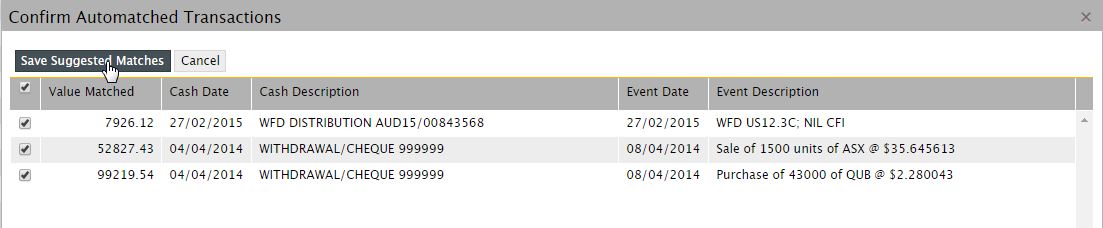
- To match the business event to the cash transaction click the Automatch button; change the Extended Search Days to 7 from 0 to allow the system to run the automatch process to pick up identical amounts with differing dates. Click Save Suggested Matches to match transactions the application was able to pick up.
-
You should now be left with an unmatched business event of $3,260.27 which is interest receivable on a term deposit from the previous financial year. Please refer to the following page for instructions on how to account for interest accrued but not taxed on first year funds.
Please note it is possible that you may have a few more unmatched income events, as cash transactions for that period are not available via cash data feed. It is also common for the broker data feed to process income events for future periods if the income announcement information is available. The demo funds are not live funds and are updated on an ongoing basis.
-
We will now review our outstanding Corporate Actions. A few things to note when processing corporate actions during the year.
- The super fund did not participate in the CGF Share Purchase Plan on 19/08/2014
- TLS Buy Back on 20/08/2014 was optional and wasn't taken up by the SMSF.
- AGK Renounceable Right Issue had lapsed and the super fund received $1,575 as a result.
- RIO buy back was not taken up either
All other corporate actions were either mandatory or taken up by the super fund.
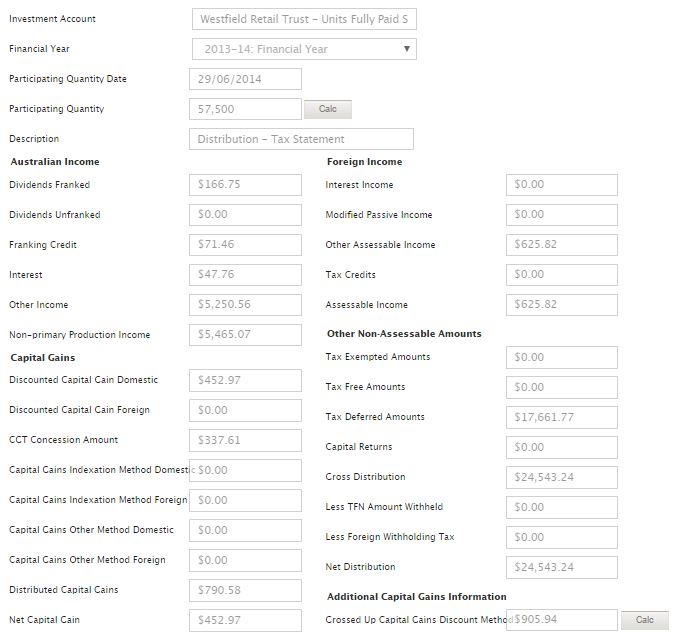
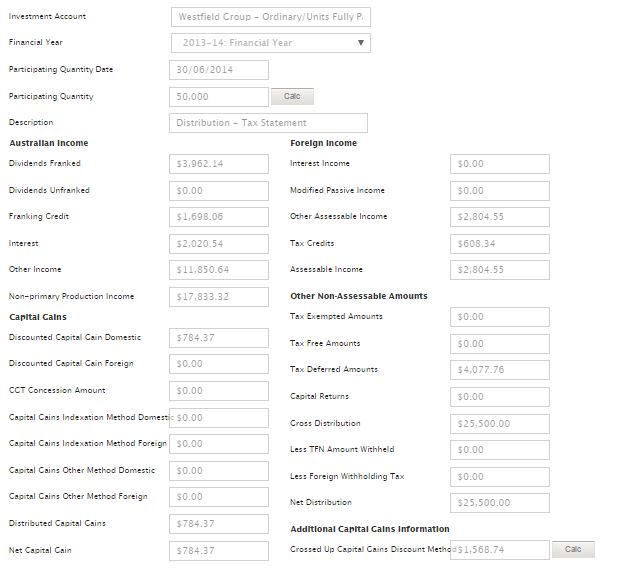
WDC and WRT paid distribution income during the year which have tax deferred components. The tax deferred components on the income is usually detailed on a tax statement which you would receive after year. As such you should process the corporate actions related to these investments after you have completed step 20.
- Once you have gone reviewed all corporate actions, go back to Match Transactions Screen to re Generate Income and Automatch process with 7 extended search days.
- Process remaining cash transactions on Match Transactions Screen using the Match to New function.
- $12,140 and $15,840 deposits are fully franked dividends - Match to New > Fund income > Dividend - Cash
- $1,100 cash out on 27/08/2013 was an audit fee - Match to New > Fund Expenses > Auditor fee
- $3,685 cash out on 27/08/2013 was paid to the accountant - Match to New > Fund Expenses > Accountancy fee
- $113,148.56 income tax paid to the ATO - Match to New> Fund Expenses > Fund income tax payment
- $40,500 deposit on 30/09/2013 and $100,000 deposit on 03/04/2014 were non-concessional contributions for Victoria - Match to New > Member income > Member contribution
- $150,000 was transferred to Term Deposit # 1909. You can allocate transactions to the term deposit account from the Browse Bank Statements screen. From this screen click Add to enter a Cash In amount of $150,000 on 27/11/2013. Once entered run the Automatch process on the Match Transaction Screen.
- Go to Reports > Exceptions report to review outstanding tax statements you need to process. Process the following tax statements from Transactions > Fund income > Distribution - Tax Statement to clear issues on Exceptions report.
- Class will automatically revalue investments linked to a market that supports Daily Prices. You will need to review the Browse Holding Accounts screen to identify any unlisted investments. The super fund holds a property which will need to be revalued as at 30/06/2014, request an automated valuation for the property to revalue the asset at market value.
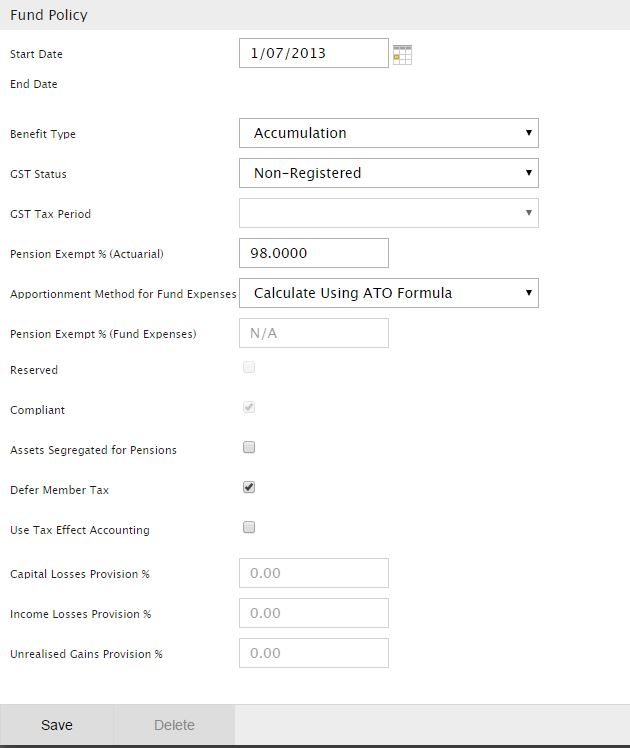
- The fund needs an actuarial certificate during the year and the pension exempt % was 98% for the year. To record the pension exempt % on the fund go to Settings > Fund defaults and set up a new fund policy as at 01/07/2013.
- Process a period update to allow the system to calculate profit allocation and taxes and finalise tax to generate tax returns to complete the 2014 year end process.
- You can compare your results to the following reports:
How to Process Transactions on Demo Unit Trust
- On the browse funds screen, click on Demo Unit Trust (DEMO_CIR). This will take you to the Fund Dashboard. Please have a look around the fund to familiarise yourself with it.
- First we will set up the data feeds and use the data feeds to bring in cash and broker transactions. The fund is set up with the following accounts where an automated feed is available.
- AUD Cash Account # 19092021
- Account Number - 19092020 (AU Broking Account)
- Account Number - 19092018 (Foreign Wrap Account)
-
To set up the cash data feed, go to Feeds > Feeds Console and click on 'AUD Cash Account # 19092021'. Click on the Load Feed Data button to bring in cash transactions from 01/07/2013 to Today's date.
It may take up to a minute or 2 for the application to load the historical transactions on the bank account.
-
To set up the broker data feed, click on 'Account Number - 19092020'. Change Product to 'Demo Broking Account'. You can also change the Display Name to 'AU Broking Account' as shown below.
Save the changes, the Load Feed Data button should now appear which will allow you to set up the broker feed. Repeat process for Foreign Wrap Account.You will need to be a little patient between activating data feeds for different accounts as the Feeds Console takes a little time to refresh while transactions are being fed into the the system.
Now that we have transactions we can go to Transactions > Match transactions to start processing the fund.
We will start by creating some Transaction Rules. Sort cash transactions by description to group transactions with similar/same narratives together. Click the
menu icon for the transaction for which you would like to create a transaction rule. The reason we do this is to ensure that the transaction rules can automatically process transactions on the bank account being fed into the system via a data feed on a daily basis. Create a transaction rule on the description 'Transaction Fee'.- On the transaction rule creation screen select bank fee as the classification for the transaction. You do not need to specify any further detail on the transaction rule. Please refer to the View Transaction Rules page on the user guide for further information on transaction rules.
-
Please refer to the following pages on the user guide to learn more about transactions rules:
- The following transactions will need to be manually matched using the Fit to Cash process.
- $95.10 C6L dividend on 04/03/2015
- 182.68 AAPL dividend on 0403/2015
- The unit trust received a fully franked dividend of $7,680 from WBC. Classify the transaction as dividend via Match to New> Fund Income > Dividend - Cash.
- We will now review our outstanding Corporate Actions. All corporate actions were taken up during the year except for TLS Buy Back on 20 Aug 2014 and MQG Share Purchase Plan on 03 Mar 2015.
- Review the Match Transactions screen for remaining unmatched cash transactions. Run Automatch with search days extended to 7 days to allow the application to match a business event to a cash transaction with differing effective dates.
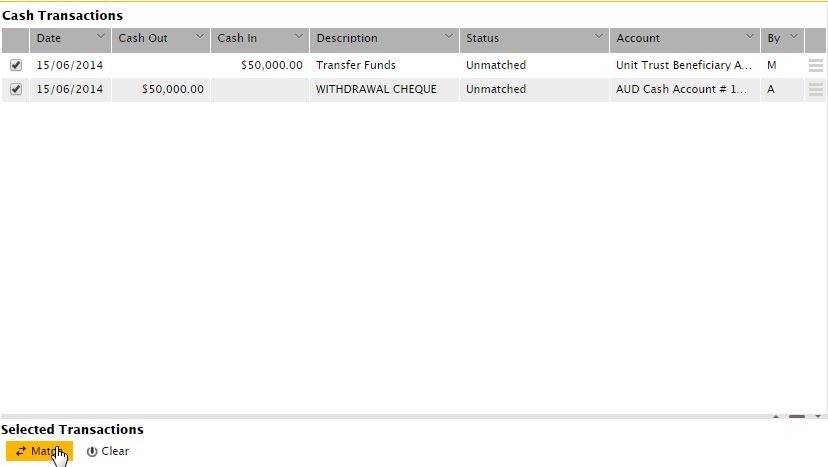
- An amount of $50,000 was withdrawn from the unit trust and paid to a beneficiary. This amount needs to be allocated to a Equity account which has been set up as a Custom Holding Account. To allocate the withdrawal to the custom holding account go to the Browse bank statement screen and from the drop-down box to select 'Unit Trust Beneficiary Account'.
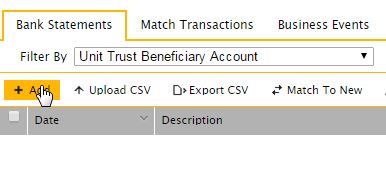
- Click Add to and enter the following transaction as shown below. Click Save Transaction to continue.

-
Match the following amounts off from the Match Transactions screen.
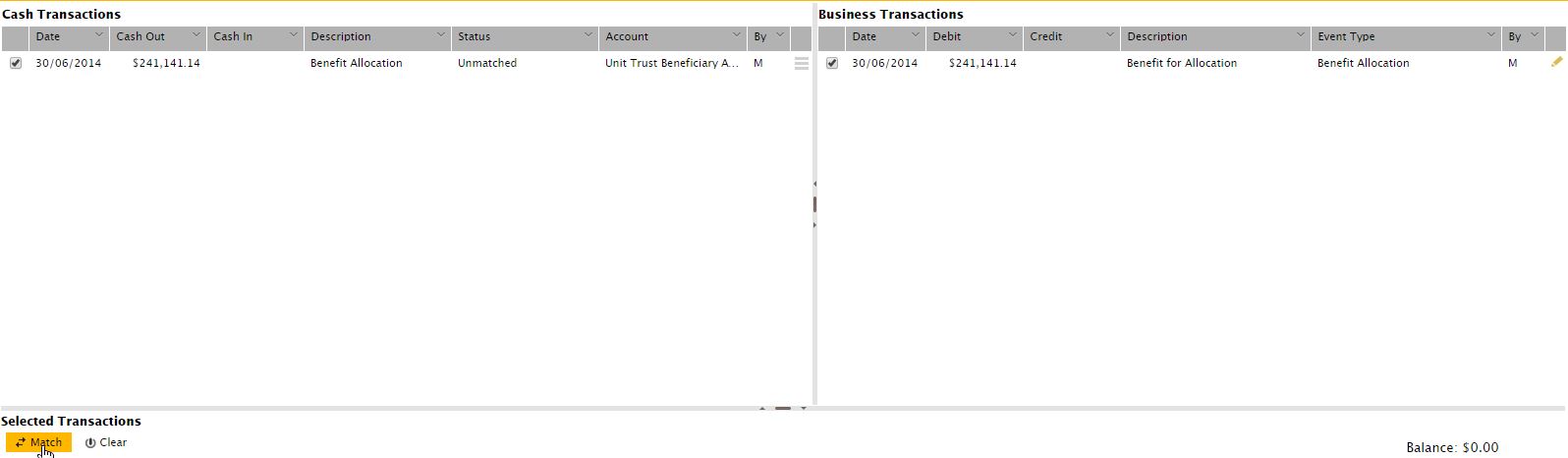
- Now, process a period update to allow the system to calculate profit allocation and taxes. The system should have calculated an amount of $241,141.14 benefit allocation for the 2014 financial year, which you can confirm from the Match Transactions screen.
- The benefit allocation amount needs to be allocated to the 'Unit Trust Beneficiary Account' from the browse bank statements screen.

- Complete the above process by matching the amounts off from the Match Transactions screen.
-
You can compare your results to the following reports: