Introduction
This page is to assist you with adjusting opening balance DRP residuals amount when the funds are first transitioned to Class, so that you can maintain correct DRP going forward.
This covers both scenarios where an existing DRP cash surplus account has been and used in prior year, as well as where no prior year DRP residual has been accounted for in prior income years.
Scenario One - Existing Prior year DRP cash surplus account
Where funds are first transitioned onto Class the DRP residual amounts are allocated to a custom holding account named DRP cash surplus. This section provides a step-by-step guide to allocating DRP residual amounts to their specific holding account.
Screen navigation
Go to Fund > Load Opening Balances
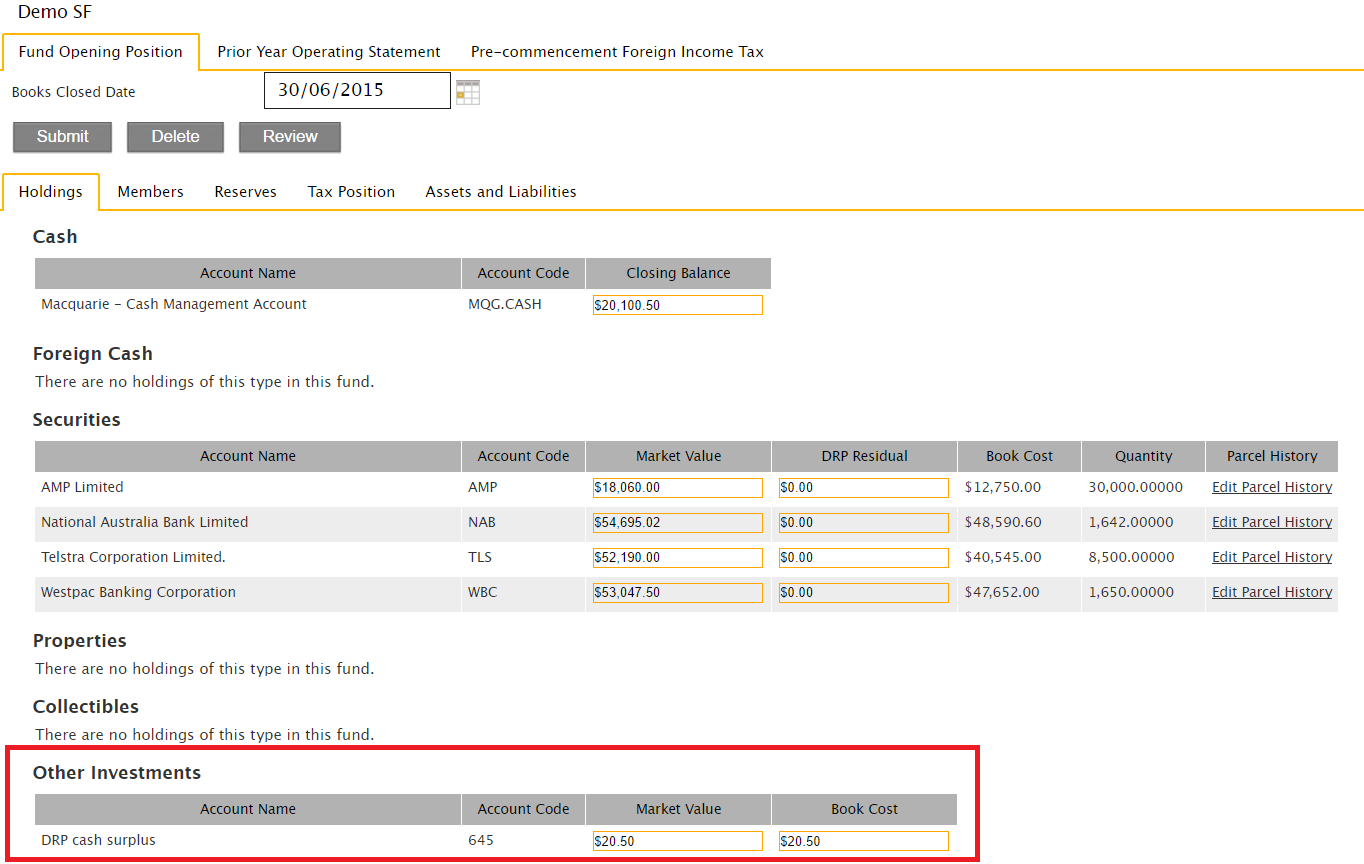
Step One – Review the balance contained in the custom holding account DRP cash surplus as displayed in the below screenshot. This custom holding account will be found under the tab Other Investments per the funds Load Opening Balances screen.
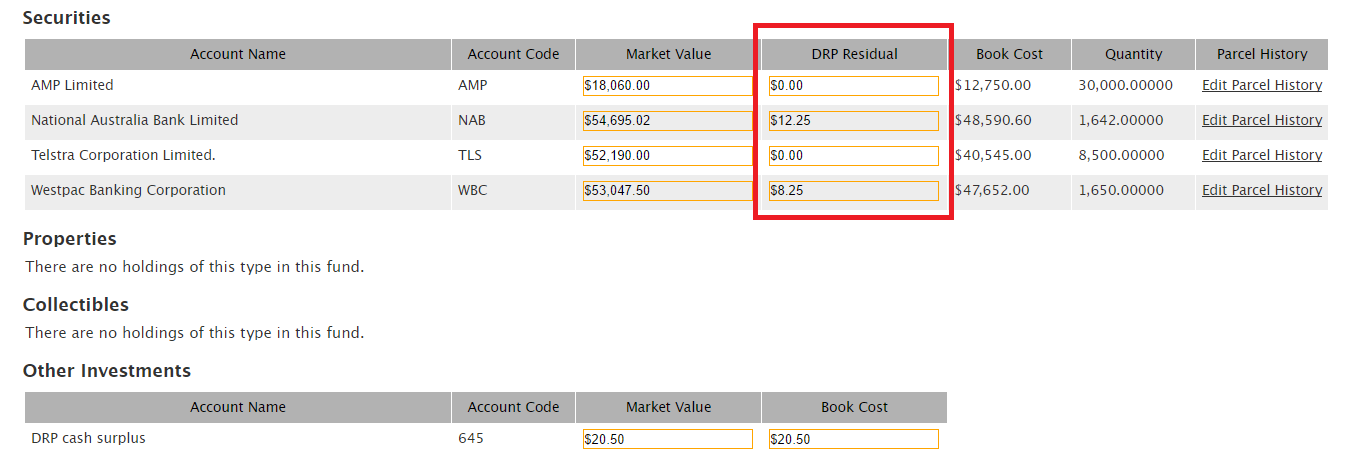
Step Two – Enter the closing residual balance amounts held at year end into the DRP Residual boxes against the relevant security, as displayed in the below screenshot.
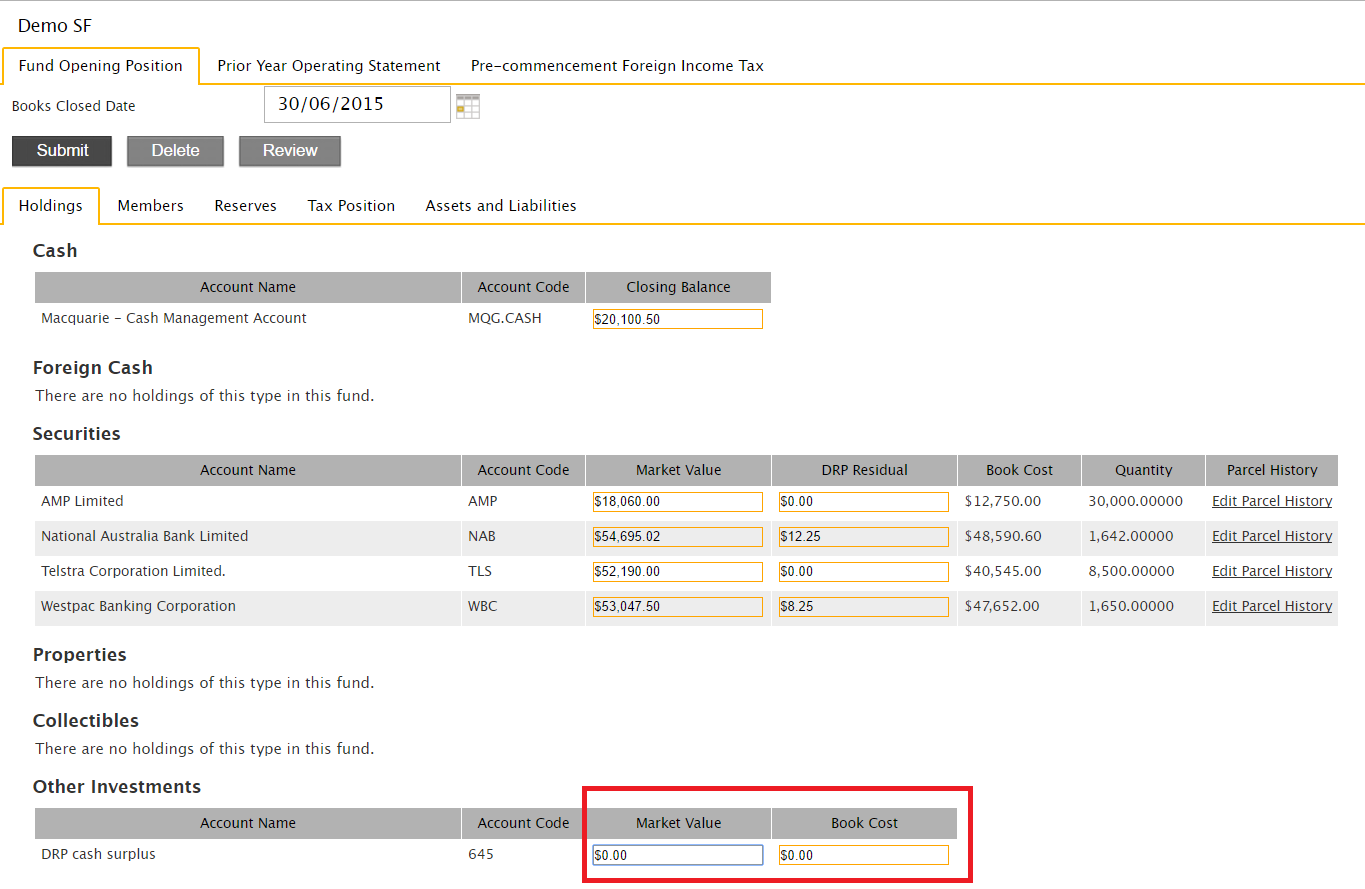
Step Three – Once you have allocated the opening residual amounts, remove the balances contained in the DRP residual custom holding account. You will need to clear or enter $0.00 to both the amounts contained in the Market Value and Book Cost boxes. Click on the Submit button to save the adjustments. This step is shown in the below screenshot.
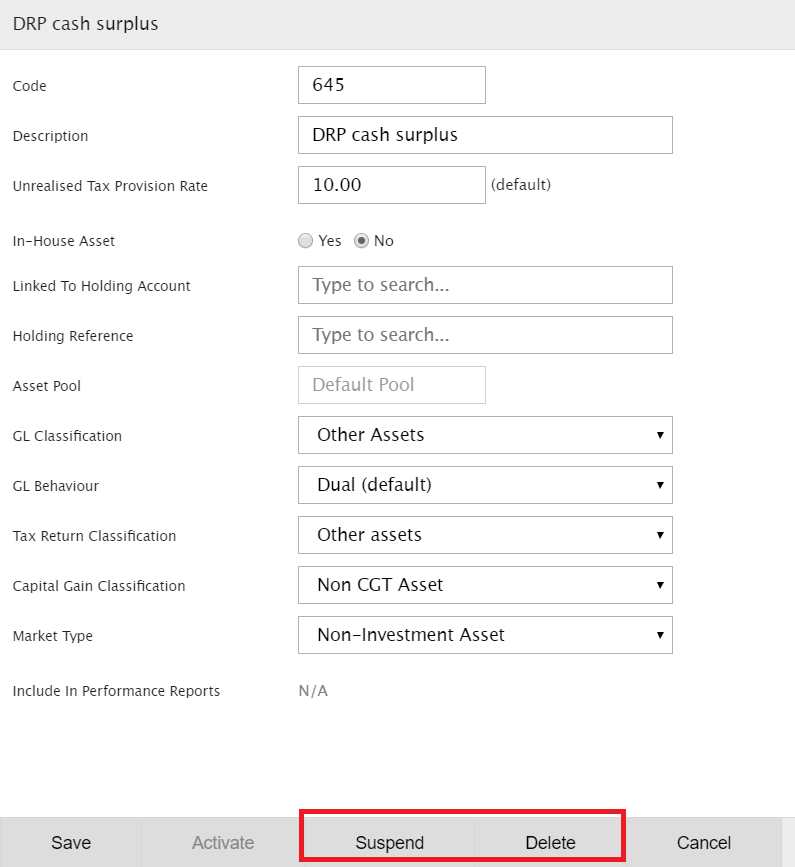
Step Four – Now that the custom holding account has been cleared you can delete or suspend this account. Navigate to Investments> Browse holding accounts and click on "Show Zero Balances", then click on the custom holding account – DRP cash surplus. The Account Details will open and click on Edit. As shown in the below screenshot you have the option to Delete or Suspend the account.
Scenario Two - No DRP residual accounted for in prior years
This section provides a step-by-step guide to adjusting carried forward DRP residual amounts that have not been accounted by the fund in the prior income year. That is, there were no DRP Residual accounts in the fund opening balance, however there should have been an amount carried from the opening balance.
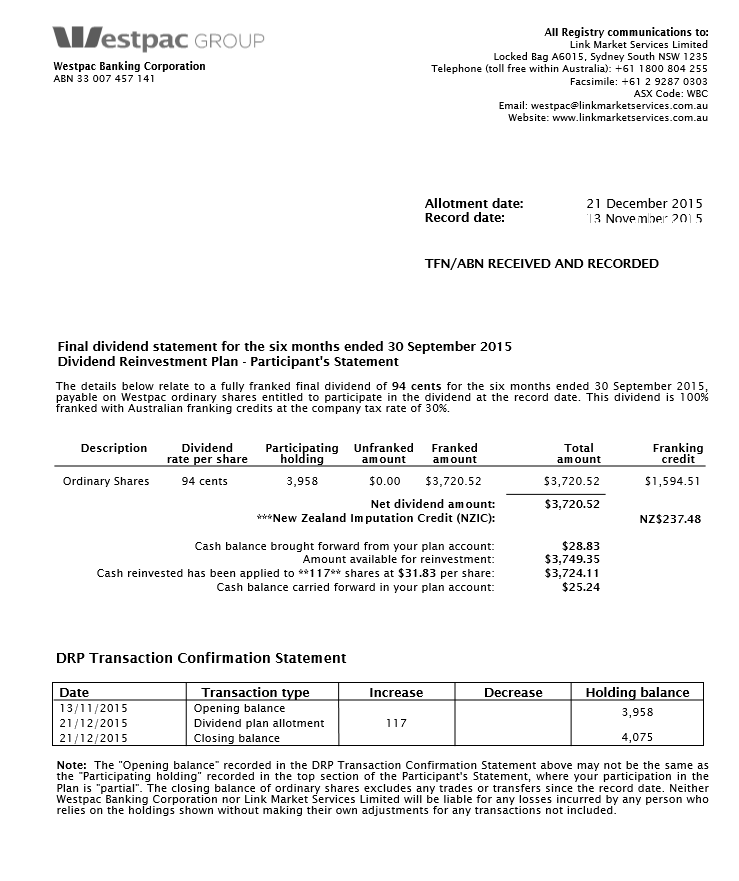
The below example DRP residual balances of $28.83 per the dividend statement have not been accounted for in the ledgers opening balance:
The following steps will present the process of accounting for DRP residual balances where the opening balance has not been accounted for using the above example as a guide.
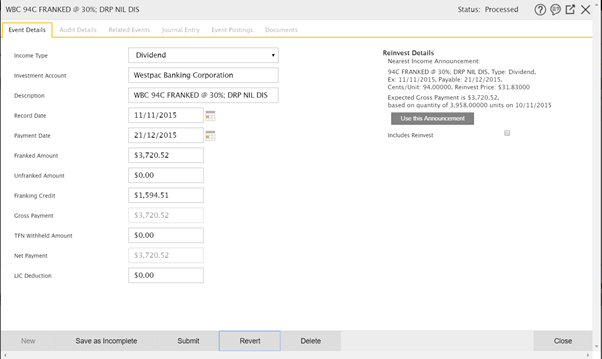
Step One – At the fund level navigate into the relevant dividend business event and click on the Edit function. The following screen will appear:
Step Two – Tick the Includes Reinvest to open the DRP fields and click onto Use this Announcement to allow Class to auto populate the DRP details. The following is a screenshot of the DRP fields prefilled per the income announcement:
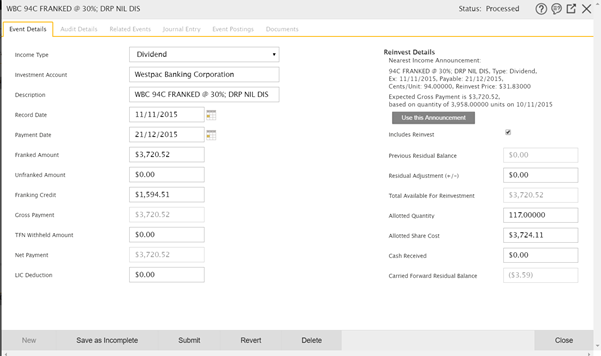
Step Three – Use the Residual Adjustment (+/-) field to adjust the variance of the balance contained in Carried Forward Residual Balance to be reflective of the dividend statement balance. The opening residual balance per the dividend statement is entered in this field. The following is a screenshot of the adjustment entered to match the above dividend statement example:
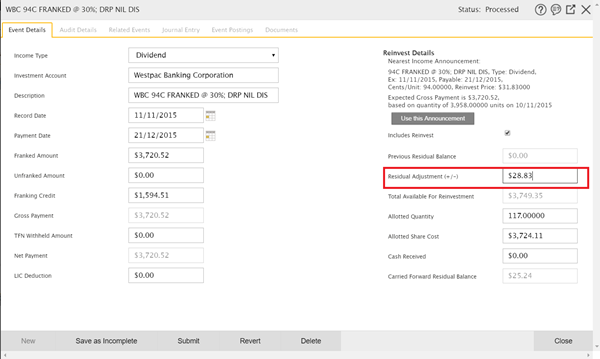
Step Four - Confirm DRP details and click Submit to save changes
An unmatched business event will be created for the adjusted residual amount entered in the Residual Adjustment (+/-) field, as residual is essentially an adjustment from the cost base of the investment holding.
Step Five – To match this imbalance a Capital Return (for negative Residual adjustment, or a Capital Call for a positive) entry needs to be created to offset this amount.
At the fund level menu go to Transactions > Investment – Corporate Action > Capital Return
Enter information in the Capital Return fields based on the holding information:
The following is a screenshot of the Capital Return business event created for the above example:
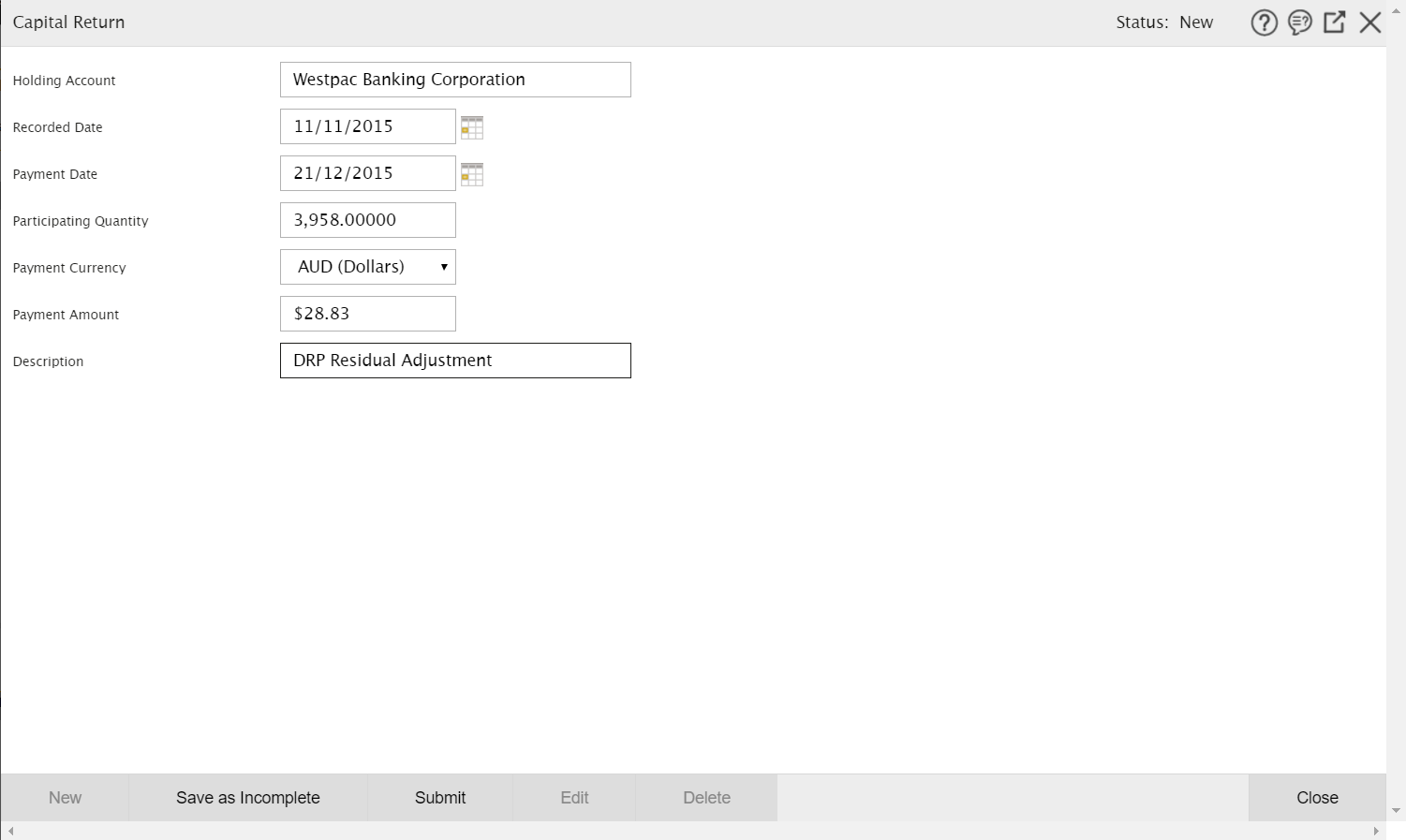
Click the Submit button to process the capital return event.
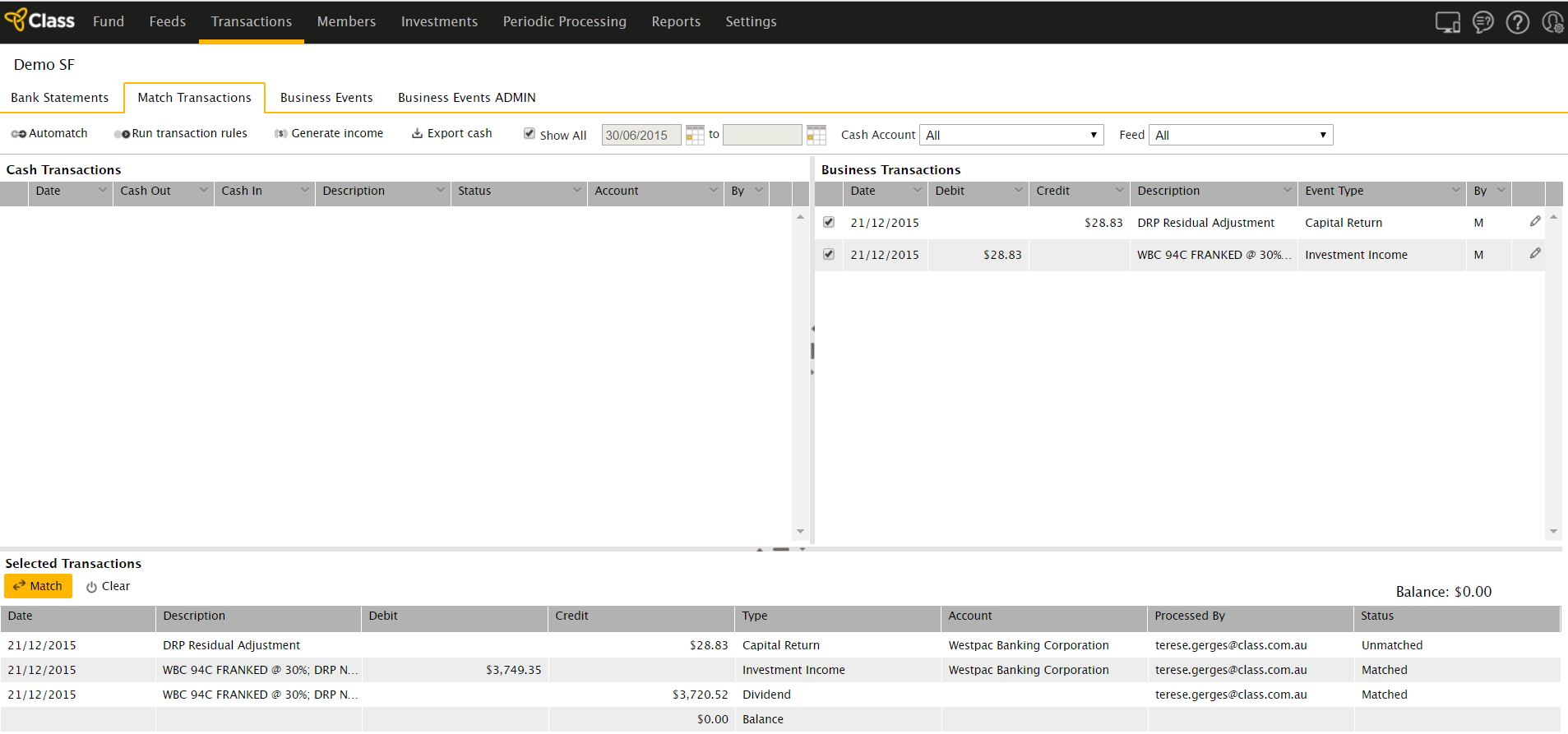
Step Six – Navigate to Transactions > Match Transactions and match the Capital Return event with the outstanding DRP adjustment event as shown in the below screenshot